
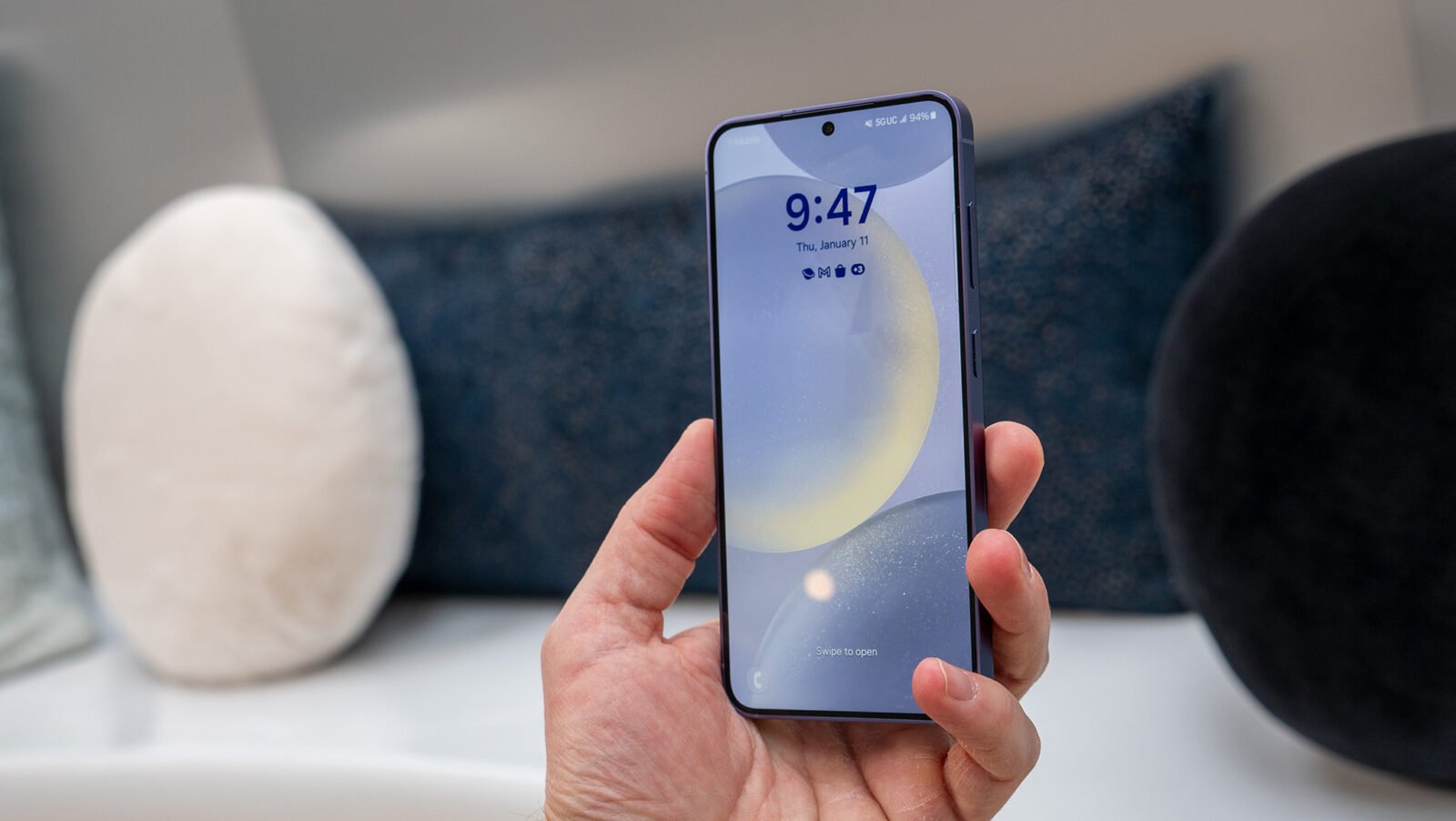
According to a 2025 Pew Research Center survey, 91% of American adults now own a smartphone, up from just 35% in 2011. Ownership is near-universal. Actual use of what those phones can do, though, is a different story.
Most people settle into a handful of apps and routines within the first week of owning a device and rarely venture past them. The result: phones packed with genuinely useful hidden smartphone features that sit untouched through years of daily use.
What Built-In Features Most Smartphone Owners Have Never Touched
The six features below ship with iOS and Android as standard. No downloads, no subscriptions, no buried menus that require a developer to find. They just need to be turned on.
Feature 1: Built-In Caller ID and Reverse Number Lookup
Most smartphones can help you find who is calling before you decide whether to answer, using tools that are already built in. Both iOS and Android have native caller ID systems that cross-reference incoming numbers against carrier databases and, in some cases, known spam registries.
On iPhone, go to Settings > Phone > Silence Unknown Callers. Turning this on sends any number not in your contacts, recent calls, or Siri suggestions straight to voicemail. Android offers a similar option under Phone app > Settings > Caller ID and Spam, where “Filter spam calls” runs incoming numbers against Google’s spam database.
For numbers that do ring through, the built-in Phone app on both platforms often displays a business name or spam warning without any additional setup. If you want to go further and find who is calling from an unfamiliar number, the Phone app on Android supports a “Call Screen” feature (on Pixel devices and some Samsung models) that asks callers to state their name before the call connects.
Feature 2: Focus Modes That Go Beyond Silencing Notifications
Focus modes go well beyond the old Do Not Disturb toggle, and most people still use them as though they are the same thing. On iOS (available since iOS 15) and Android (available as Modes and Routines on Samsung or via Digital Wellbeing on Pixel), Focus lets you define which apps and contacts can interrupt you during specific activities or times.
The distinction that makes this one of the more useful smartphone hidden features: it’s context-aware, not just volume-aware. A Sleep focus can dim the lock screen, suppress all notifications, and restore them at your chosen wake time. A Work focus can allow calendar alerts and calls from colleagues while blocking social media entirely.
Setting one up takes about five minutes:
- On iPhone: Settings > Focus > Add Focus and choose a preset or create a custom one
- Set allowed contacts (people whose calls always ring through)
- Set allowed apps (only the ones that genuinely need to reach you)
- Add a schedule or automation trigger (time of day, location, or when a specific app opens)
- Enable Focus Status sharing if you want contacts to see that notifications are silenced without knowing which Focus is active
The automation piece is where this feature earns its keep. A Focus that activates automatically when arriving at work, then deactivates when leaving, runs without any manual input.
Feature 3: Accessibility Shortcuts That Aren’t Just for Accessibility
Accessibility settings contain some of the most powerful hidden smartphone features on any device, and they are not only for users with disabilities. Several tools buried in these menus are genuinely useful for anyone.
On iPhone, Back Tap (Settings > Accessibility > Touch > Back Tap) lets you assign an action to a double or triple tap on the back of the phone. Common uses: take a screenshot, launch the camera, open the Control Center, or trigger a Shortcut. No button press needed.
Android’s equivalent is Quick Tap on Pixel devices (Settings > System > Gestures > Quick Tap), which similarly fires an action when you double-tap the back of the phone. On Samsung, the Side Key can be configured to launch specific apps or perform actions with a double press.
A few other accessibility features worth activating:
- Sound Recognition (iOS): the phone listens for specific sounds (doorbell, baby crying, smoke alarm) and sends a notification even when the device is silenced
- Live Captions (Android): generates real-time captions for any audio playing on the device, including calls and videos
- Magnifier (iOS): turns the camera into a magnifying glass, accessible via a triple-click of the side button
Feature 4: Offline Maps That Work Without Any Signal
Most people open a maps app, wait for it to load, and burn mobile data the entire trip, not realizing offline map downloads have been available for years. Both Apple Maps and Google Maps allow full offline downloads of geographic regions that work without any internet connection.
In Google Maps, tap your profile picture, select Offline Maps > Select Your Own Map, and draw a box around the area to download. The file covers roads, businesses, navigation, and turn-by-turn directions. Apple Maps introduced downloadable offline maps in iOS 17; go to Maps > Profile icon > Offline Maps > Download New Map and select a region.
The downloaded maps update automatically when connected to Wi-Fi, so they don’t go stale. For travel, road trips, or areas with unreliable signal, this is one of those smartphone hidden features that feels obvious in hindsight but catches most people off guard.
Feature 5: Camera Tools That Read, Translate, and Identify
The camera on a modern smartphone does far more than capture photos. Both iOS and Android have built-in visual intelligence tools that most users tap past without noticing.
Live Text on iPhone (iOS 15 and later) detects text in any photo or through the live camera viewfinder. Pointing it at a handwritten note, a menu in a foreign language, or a printed address lets you copy, translate, or search that text immediately, no scanning app needed. Access it in the Camera app: a small icon appears in the bottom right corner when text is detected.
Google Lens is built into the Android camera app and the Google app on iOS. It identifies plants, animals, landmarks, products, and text in real time. It also has a Translate mode that overlays translated text on the image live, which is useful for reading menus, signs, or documents in unfamiliar languages.
Both tools work on photos already in the camera roll, not just live viewfinder shots. If a phone number, address, or Wi-Fi password appears in a saved image, Live Text or Lens can extract and act on it directly without any retyping.
Feature 6: Digital Wallet as a Secure ID and Physical Key
This feature varies by device and location, but is more widely available than most people realize. Both iPhone and select Android devices support digital versions of physical documents and credentials that live in the phone’s secure enclave.
On iPhone, Apple Wallet (iOS 17 and later, US only for now) supports driver’s licenses and state IDs in states that have enabled it. The credential is presented via NFC tap at TSA checkpoints and other supported points without handing over the physical card. On Android, Google Wallet supports similar digital ID functionality in participating states and countries.
Comparison of what each platform stores in a digital wallet:
| Credential Type | Apple Wallet (iOS) | Google Wallet (Android) |
| Driver’s license / State ID | Yes (select US states) | Yes (select regions) |
| Car key (digital) | Yes (select manufacturers) | Yes (select manufacturers) |
| Home/hotel key | Yes (HomeKit locks, select hotels) | Yes (select hotel chains) |
| Transit card | Yes (major US cities + international) | Yes (major cities globally) |
| Event tickets | Yes | Yes |
| Loyalty/rewards cards | Yes | Yes |
| Vaccination records | Limited | Limited |
The car key feature is one of the more underused entries in this table. If a vehicle supports it (most BMWs, select Ford, Hyundai, and Genesis models do), the phone replaces the physical key entirely via NFC or UWB, with options to share temporary digital keys with other people.
Make Your Smartphone Smarter with Hidden Features
Each of the six features covered here, from caller ID screening that helps you find who is calling to offline maps and digital IDs, ships with the phone itself and requires no additional installs. The gap between what modern smartphones can do and what most owners use daily is wide. These hidden smartphone features don’t change how the phone looks or feels; they just quietly make it more useful once turned on.
A reasonable starting point: pick one feature from the list, spend five minutes enabling it, and see whether it actually fits into the way the phone gets used. That’s a more durable way to build on smartphone hidden features than trying to configure everything at once.
FAQ
Do these features drain battery life significantly?
Most have minimal impact. Focus modes, offline maps, and Live Text run passively or only activate on demand. Sound Recognition on iOS and Live Captions on Android do use continuous processing and will affect battery, so they are best enabled only when needed rather than left on permanently.
Are hidden accessibility features on by default?
No. Back Tap, Sound Recognition, Live Captions, and similar tools are all opt-in. They sit in the Accessibility menu, disabled until turned on. The reason is that some run background processes and others change how the device responds to touch input, so manufacturers leave them off to avoid confusion for users who don’t want them.
Can offline maps be used for navigation, or just for viewing?
Full turn-by-turn navigation works offline on both Google Maps and Apple Maps once the region is downloaded. The only limitation is real-time traffic data, which requires an internet connection. Routes and directions themselves function entirely without connectivity.
Is the digital ID feature secure if the phone is lost or stolen?
Yes. Digital IDs in Apple Wallet and Google Wallet are protected by the phone’s lock screen authentication (Face ID, fingerprint, or PIN). The credential itself is stored in a secure enclave, not as a plain file that can be copied. Remote wipe via Find My (iOS) or Find My Device (Android) also removes access. In most implementations, the ID cannot be presented without biometric or PIN confirmation.
Can Focus modes on iOS be shared across devices on the same Apple ID? Yes. Focus settings sync across all Apple devices signed in to the same Apple ID, so enabling a Work focus on the iPhone also activates it on a connected iPad and Mac. This can be turned off per device in Settings > Focus if cross-device sync isn’t wanted.
